Agents can now act as each of your users
· 3 min read · Product Updates
Connections can now sign in as each user, not just one shared account, so an agent in your product works in that person’s own calendar, inbox and CRM.
Connections can now sign in as each user, not just as one shared account.
Until now, a connection in Mindset signed in once and every user of the agent shared that account. From today, you choose per connection. Shared works as before: an admin signs in once and every agent, run and user acts as that one account. Individual lets each person connect their own account, so the agent acts as whoever is asking.
Ask a calendar agent "what's on today?" and two different users each get their own calendar back. Ask a sales agent to draft a follow-up, and it lands in that rep's own Gmail, not a shared inbox.
Why this matters for agents in your product
The agents you put in front of your users are most useful when they work in that user's own tools: their calendar, their CRM records, their call notes. A shared login can't do that safely, so until now those agents either stayed generic or waited on a workaround. In our experience, this is often the one thing standing between a finished agent and its first beta customers.
- Each user sees only their own data: The agent can only reach what that person can already see in the other system, so nobody reads someone else's inbox or pipeline.
- No shared logins to manage: You roll an agent out across users and tenants without anyone handing over a password or a service account.
- Every action is theirs: The outside system sees the person's own account, and Mindset records which agent made each call, so you can always trace who did what.
- Users stay in control: They connect from the conversation when the agent first needs them, and can disconnect at any time.
How it works
You set it up from your AI tool
Like everything in Mindset 4.0, you create the connection through the Mindset MCP (mindset-admin). Pick the system, set it to Individual or Shared, and assign it to an agent.
If the connection needs an OAuth client secret, your AI tool gives you a secure link to enter it. If your org already has a Google or HubSpot client, it reuses that one instead. Mindset holds the secret and every user's sign-in, and adds them to each call, so your AI tool, your agents and the model never see a credential.
Using the mindset-admin MCP server, add a Google Calendar connection
in our Sandbox environment. Set it to Individual so each user signs in
with their own account, reuse our existing Google OAuth client, and
assign it to the Meeting prep agent.
Watch Connect a system (3 min) to see it done end to end.
The only step that leaves your AI tool is the sign-in itself, because it needs a person.
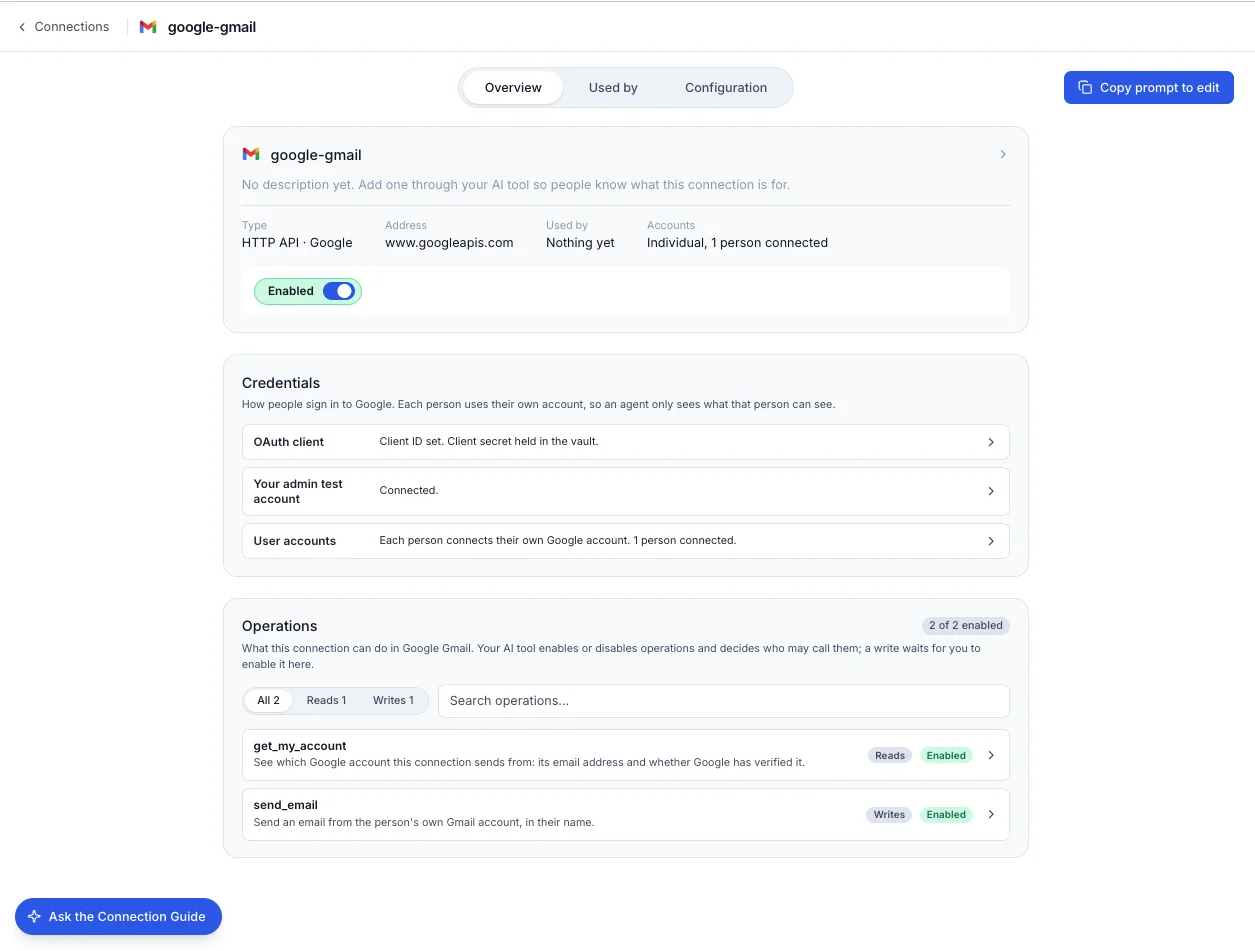
Once it's set up, the connection's page shows its OAuth client, your own test account, how many users have connected, and what the agent can do there.
Your users connect in the conversation
The first time an agent needs someone's account, it asks them in the chat and shows a Connect button. They sign in with the provider, come back to the conversation, and from then on the agent's calls run as them. Users can see and disconnect their accounts under Account settings, then My connections.
What you can connect this way
- Any remote MCP server that uses OAuth sign-in, such as HubSpot or Salesforce
- Google Calendar, Drive and Gmail
Get started
Nothing changes for connections you already have: they stay Shared until you change them.
- Ask your AI tool, through the
mindset-adminMCP, to create a connection set to Individual, or to switch an existing one, and assign it to an agent. - Open the link it gives you and make the new version active in your Sandbox.
- Ask the agent something that needs the account, press Connect, and check it answers with your own data.
If you host Mindset yourself and want users to connect their own Google accounts, add https://<your Mindset address>/api/connections/oauth/callback as a redirect URI on your Google OAuth client, and enable the Google API for each service you connect.
Read more in Connections and operations on our docs site.