Docs / Managing what's live
Agent versions
You can now safely make changes to an agent, without impacting the agent version that's available to your users.
What this is
This guide is for the admins who set up and manage agents.
Changing an agent that is already in conversation with your users carries risk. When you change how an agent is set up, you need to know what you changed, check that it works, and have a way back if it does not. Versions cover all three.
Each time you save a change to how an agent behaves, Mindset keeps it as a new numbered version: Version 1, Version 2, Version 3 and so on. Saving never changes what your users get. A version is only live to users when you activate it, and an agent never has more than one active version.
What a version includes
A version is a complete snapshot of everything that shapes how your agent behaves:
- The prompt fields: Purpose, Personality, Background, Policy rules and Output formatting
- The AI model
- The reply language
- The agent's name
- The script the agent follows
- The connections, knowledge, widgets, functions and helper agents it can use
- Its schedules, including their instructions
Note that Availability sits outside versions. It controls whether and where the agent can be reached, not how it behaves, so a change to it takes effect as soon as you save and does not create a version. See Where your agent can be reached.
Making changes
You can edit across as many tabs as you like. An Unsaved changes bar, marked with a purple dot, stays at the top of the page as you move between tabs. A dot also appears next to the name of any tab you have edited. When you are ready, press Save as version and everything you changed becomes one new version.

The bar then reads "Saved as a new version. Make it active", as a reminder that the change is not live yet. If you try to leave the page with unsaved changes, you will get a warning first.
If a colleague saves or activates a version while you are working, you will see a notice such as "Someone else saved a new version". Your own edits stay where they are.
The Versions & Availability tab
This tab lists every version, newest first, and is where you manage which one is active. Each version shows its number, when it was saved, who saved it and its status.
| Status | Meaning |
|---|---|
| Active | The version your users are talking to now |
| Previously active | Was active at some point, but is not now |
| Never active | Saved, but never made active |
| Currently viewing | The version you have open |
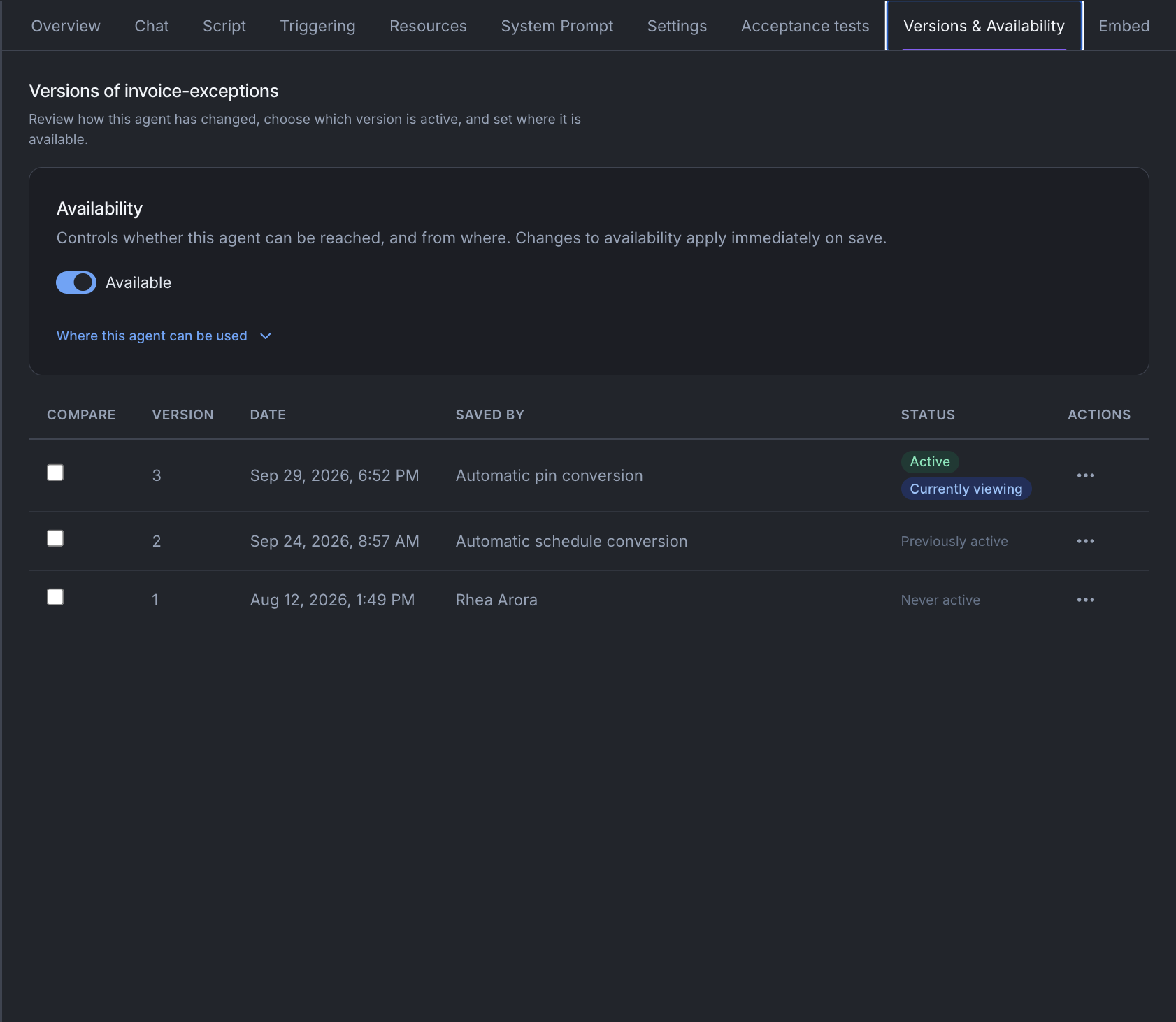
Each version has a menu with three actions:
- Activate makes it the version your users interact with.
- Open shows exactly what the version contained. The top bar tells you which version you are viewing and which one is active.
- Delete removes it from your history.
Activating a version, and going back
Activating is a separate step from saving, so nothing goes live by accident. Choose Activate on a version and confirm in the "Activate version N?" dialog.
Going back works the same way. There is no separate rollback button. You activate an earlier version, and your agent returns to how it behaved at that point. If you pick an older version, Mindset tells you it is not the latest.
Going back puts back everything recorded on the agent itself. It does not put back earlier versions of widgets and functions, because the agent uses whatever version of each is published now. It also does not put back resources switched off or deleted since: Mindset refuses to activate a version that depends on one of those, and says why.
A reply that is already under way finishes on the version it started with. From their next message, everyone moves onto the newly active version.
Two things to know before you go back:
- Your whole organization uses the same active version of an agent. You cannot keep one group of users on an older version while others move to a newer one.
- Connections, widgets and functions that an agent uses are part of a version. Going back to an older version can remove resources you have added since.
Versions that cannot be activated
Mindset will not activate a version if:
- it was saved before Mindset recorded the whole agent in each version
- it uses a connection or resource that has since been switched off, or is waiting for approval
- it uses something that has since been deleted
- its AI model is no longer offered in your region
These versions are marked in the table, and hovering over the badge explains why.
You can fix a switched-off resource by switching it back on. Mindset refuses rather than half-restoring an agent, so what you activate is always what you get.
Comparing two versions
Tick any two versions, then choose Compare the two selected. Each part of the agent is marked as changed or unchanged, going from the older version to the newer one. For the model and reply language, you will see the old and new values.
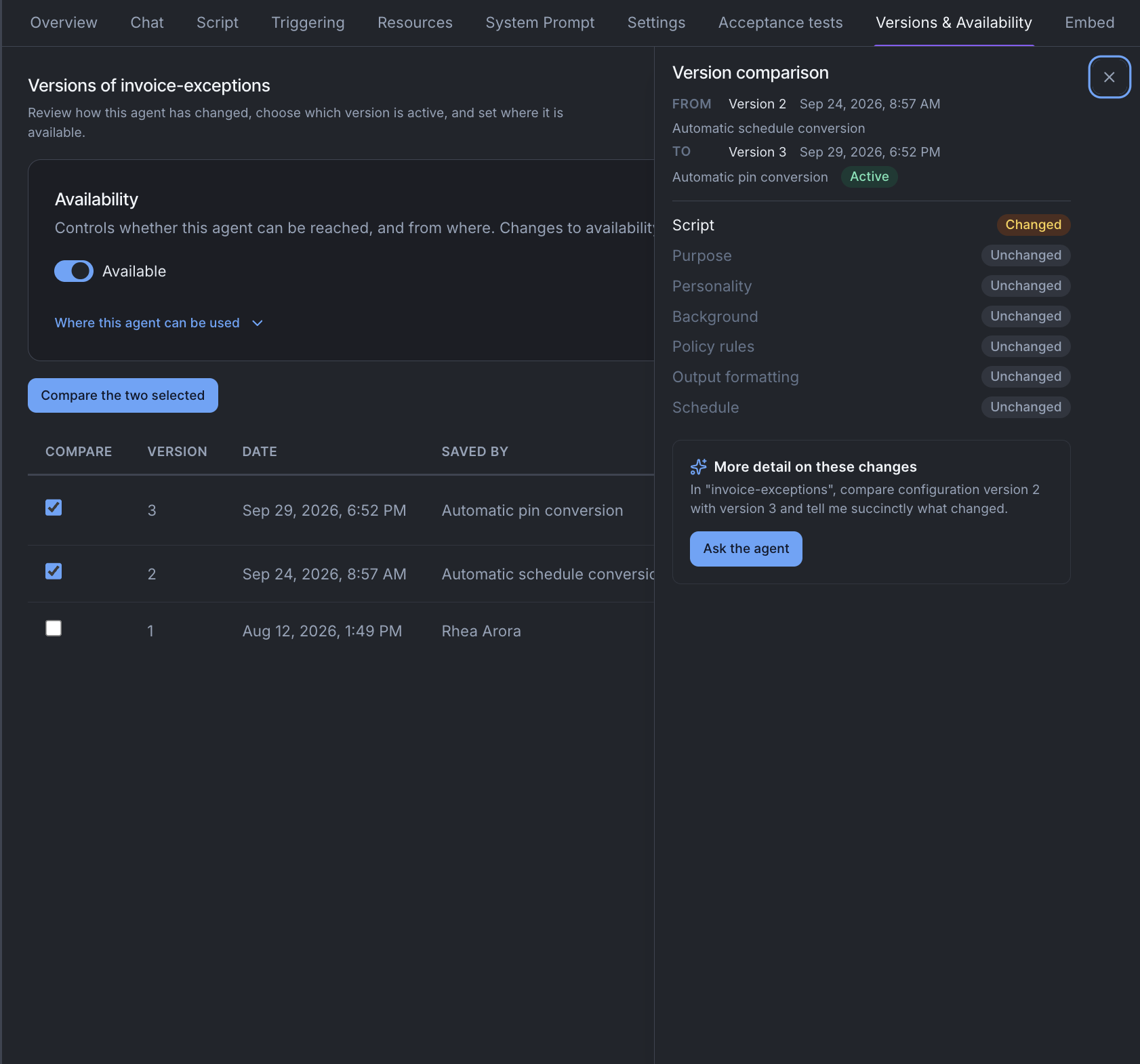
To find out what changed in everything else, such as the prompt wording, script, resources or schedules, choose More detail on these changes. The Agent Builder explains in plain words what is different, so you do not have to compare long blocks of text yourself.
Testing a version before your users see it
The Chat tab has a version picker. Choose any version and chat with it while your users keep talking to the active one. This is the easiest way to check a change before you activate it.
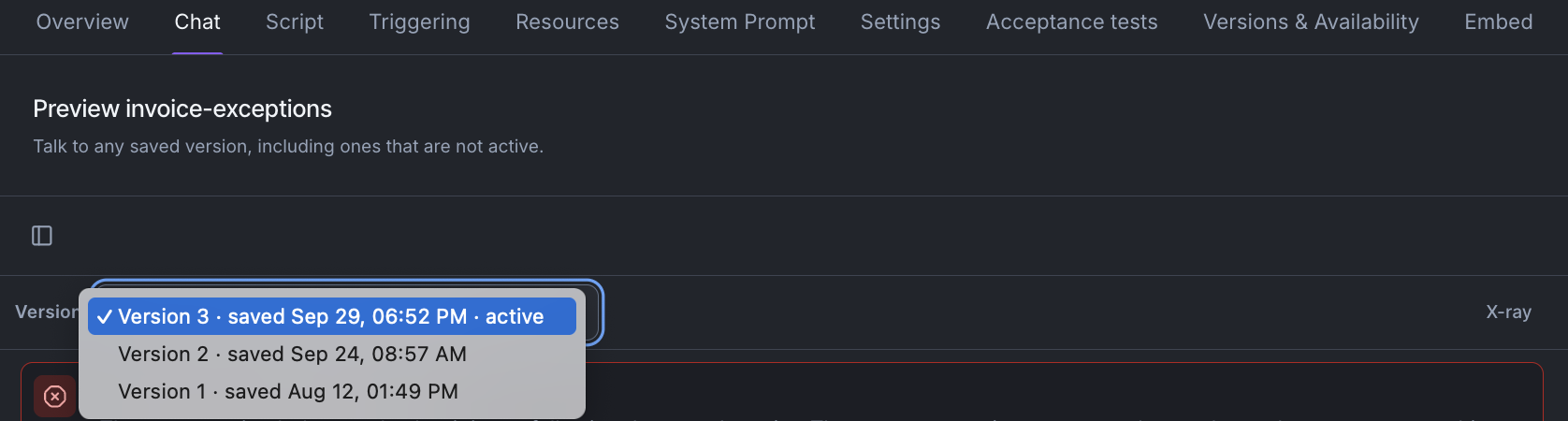
The picker starts on the active version, so if you do not pick one, you see what your users see. Switching to a different version starts a fresh conversation.
On the Triggering tab, Run now runs the version you are currently viewing, so you can test a scheduled task too.
Deleting versions
Choose Delete this version from a version's menu and confirm. The version disappears from your list and can no longer be opened, compared, tested or activated. Mindset still keeps a record of it, so past conversations still show which version answered them.
You cannot delete the active version. Activate another one first. You cannot delete an agent's only version.
When Orca or the Agent Builder creates an agent for you, it tests its work and fixes what it finds. Each fix is saved as a new version, so a single request can produce more than one. They give you a record of how the agent was built, and you can delete the in-between versions you do not need.
Knowing which version answered
Every conversation and run records the version that produced it. You will see it in three places, all visible to admins only:
- Chat tab. When you test an agent, each reply shows "Answered by version N".
- Log. Open any event and its detail panel shows the version that ran.
- Triggering tab. In a schedule's run history, the Origin column shows the version alongside how the run started: Scheduled, Manual or Webhook.
Your users never see version numbers in their own chats. Conversations from before versions were recorded do not show one.
Who can manage versions
Only organization admins can view, compare, test, activate or delete versions. Your users always get the active version and can never reach one that has not been approved.
Every save, activation and deletion is recorded in the Audit log, with who did it and when. Each entry also records the state before and after it, so you can see what the change was.